
How to Make Sure Important Emails Don’t Go to Spam: Marking an Email as a Safe Sender
Have you ever had someone submit a contact form on your website, only to discover that the notification ended up in your spam or junk folder? It happens more often than you might think.
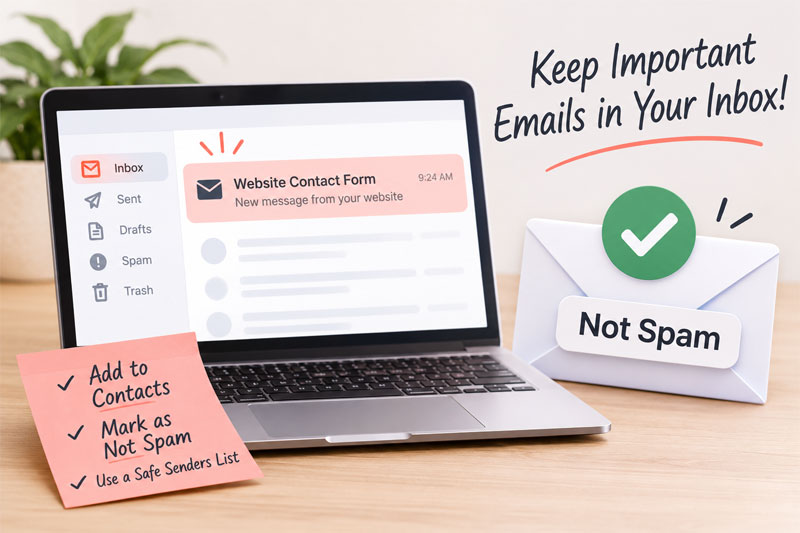 Website contact forms rely on email delivery to get messages from potential customers to your inbox. Unfortunately, email providers sometimes mistake these automated notifications for unwanted email. The good news is that there are a few things you can do to help prevent this from happening.
1. Add Your Website’s Email Address to Your Contacts
One of the easiest ways to help prevent contact form notifications from being marked as spam is to add the email address your website uses to send notifications to your contacts.
This helps your email provider recognize the sender as someone you trust.
2. Mark Emails as Not Spam or Not Junk
If you find a website contact form notification in your spam or junk folder, don’t simply delete it!
Instead:
- Open your Spam or Junk folder.
- Find the notification sent from your website.
- Select Not Spam, Not Junk, or the equivalent option.
- Move the message to your inbox if necessary.
This helps teach your email provider that these messages are legitimate and should be delivered to your inbox.
3. Add the Sender to Your Safe Senders List
Some email providers allow you to create a list of trusted email addresses or domains. Adding your website’s sending address to this list can help prevent future notifications from being filtered into spam.
4. Check Your Website’s Email Settings
If contact form notifications consistently fail to arrive, the issue may not be with your email provider. Your website may not be configured correctly to send email.
Proper email configuration, including SMTP and email authentication (SPF, DKIM, and DMARC), can help improve delivery and establish that messages sent from your website are legitimate.
5. Test Your Contact Form Regularly
It’s a good idea to occasionally submit a test message through your website’s contact form to make sure notifications are arriving where they should.
Don’t assume everything is working just because your website displays a successful submission message. That only confirms the form accepted the message, not that the email was delivered.
Don’t Miss Another Website Inquiry!
Your website’s contact form may be the first point of contact for a potential customer. Making sure those messages reach your inbox is an important part of keeping your website working for your business.
If you’re missing contact form notifications or aren’t sure your website is sending emails correctly, it’s worth having your website’s email settings checked.